



Table of Contents
If you’ve ever sent an e-invoice and a client called you asking, “What is this thing I received? I can’t open this weird file!” – you are not alone. Most business owners still doubt what a “real” invoice is and what is just a picture of an invoice.
In this article, we bust the myths about e-invoice formats and explain how to avoid misunderstandings with customers.
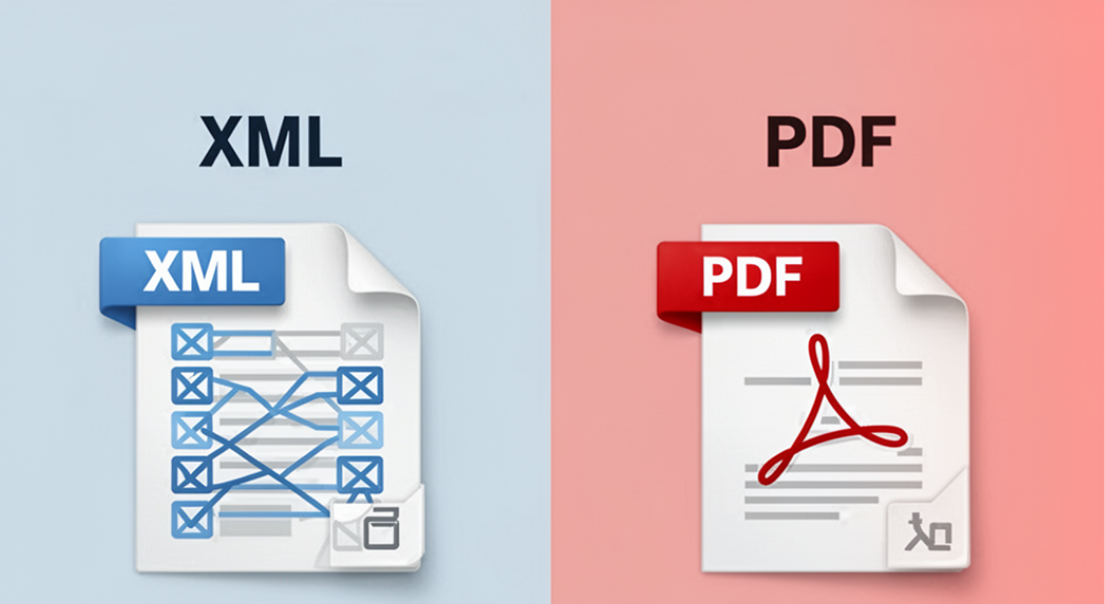
XML is the brain, PDF is the face of the invoice
The shortest answer to the title’s question is: an eInvoice is an XML.
- XML format (.xml): This is the legally mandatory format under the new Fiscalization Act. It contains structured data that information intermediaries and the Tax Administration exchange.
- PDF format (.pdf): This is merely a visual presentation of that data. It serves us humans so we know what we are paying, who the buyer is, and who the seller is.
The problem arises here: The law dictates that you must send the XML via an information intermediary. If your client’s system lacks the option to “read” that XML, they will only see code, not a readable document.
Why does the client claim you didn’t send a PDF?
When a client says they got “only an XML,” the issue usually lies with their information intermediary.
Quality systems (like our app) have an integrated visual presentation. This means that as soon as you receive an XML, the system automatically “draws” it and displays it as a classic PDF invoice.
If the client’s intermediary doesn’t have this feature, the client is left confused, staring at raw data.
How to “force” the PDF to reach the client?
If your client explicitly wants a PDF, and their system doesn’t display it, there is a surefire way to accommodate them directly through our app. The solution is in the attachment:
Generate the invoice: Create the invoice in the app as usual.
- Save the PDF: Before sending, download the PDF version of that invoice to your computer.
- Spremite PDF: Prije slanja, preuzmite PDF verziju tog računa na svoje računalo.
- Add it as an attachment: In the e-invoice sending interface, click on the option to add attachments.
- Send both: Attach that exact PDF alongside the XML.
To make things as easy as possible for you, we have also prepared a short video guide. Watch step-by-step how to add a PDF attachment: : 👉 Click here for the video
This way, the client will see the XML (for accounting) and your PDF (for reading) in their system, regardless of what kind of intermediary they use.
Conclusion:
It is important to understand that sending an XML is not a mistake on your part, but rather the fulfillment of a legal obligation. The PDF is there solely for visual communication
However, there is another key step entrepreneurs often forget: by law, it is mandatory to long-term archive exclusively the XML file of the invoice, not the PDF. That is precisely why it is essential to have a reliable and legally compliant eArchive – a functionality our system already offers and which does all this automatically for you.
By using tools that understand both worlds and take care of your archive, you save time for yourself and your clients, and your business remains legally compliant without stress and unnecessary support calls.
Table of Contents